Start · 6 min practice
Custom prompt: choose layouts and a look
Give your AI example layouts, set the deck size and appearance, or use a saved brand kit.
Fictional practice material · no account · updated 14 October 2026
- 01
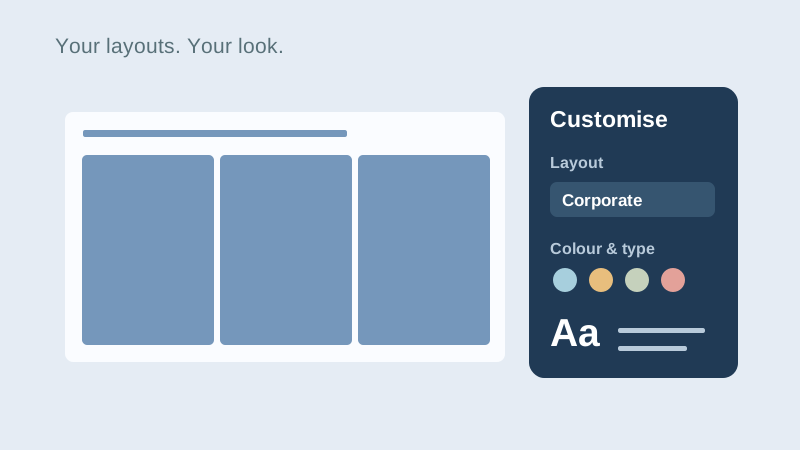
Choose a layout set
Open Custom prompt. Pick a layout set that suits your story, such as Corporate for a recommendation or Status for a progress update. You can also choose your saved brand kit from the same page. Have a reviewed outline ready in your permitted AI chat.
Check: The studio shows the layout set or brand kit you intended to use.
- 02
Set the example size and look
Choose Compact, Standard or Extended and review the example slides. Set colours, background, typography, header and footer as needed. Deck size controls the example material your AI receives; tell your AI separately how many slides your own story needs.
Check: The preview shows a look you want to reuse and the example size is deliberate.
- 03
Inspect and copy the prompt
Use View prompt to inspect what will be copied, then Copy prompt. Paste it into the AI chat with your outline and requirements. If clipboard copying is unavailable, download the prompt and copy its text. The examples guide the design; the AI writes your content.
Check: Your AI receives the full prompt alongside your own brief.
- 04
Review the returned deck
Bring the whole response or HTML file back through AI reply. Compare it with your requested outline and design. Correct text locally or request an AI revision, then save the PowerPoint and HTML together.
Check: Your saved deck contains your content, checked figures and the intended design.
Check what you can do
Tick the results you verified yourself.
No account or reporting. Completion stays on this device.
Yours to keep
Your work. Your files. Your next move.
Keep your deck in your own files. Continue in PowerPoint, share it with colleagues, or return to the HTML source for your next AI revision.
PowerPoint · keep working
An editable .pptx for the tools and people you already work with.
HTML · keep the source
A self-contained source file you can open in a browser and revise with your chosen AI.
Next lesson
Designer: build and use your brand kit