Start · 4 min practice
Editor: edit a deck and keep your files
Change a heading and a chart. Leave with an editable PowerPoint and the HTML source.
Fictional practice material · no account · updated 14 October 2026
- 01
Open your practice copy
Use Open the practice deck. A fresh four-slide Harbourline example opens in the real editor. All names and numbers are fictional; your existing decks stay as they are.
Check: Four slides appear in the filmstrip.
- 02
Make the heading yours
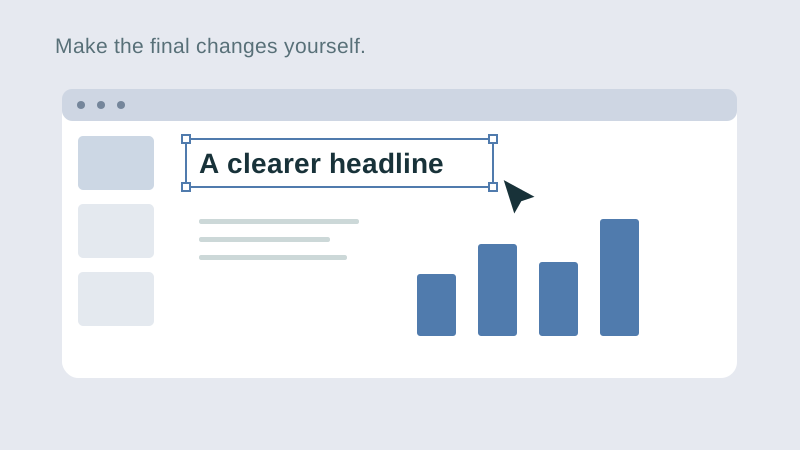
On slide 1, double-click the heading. Replace it with ‘Three sites live; the final cutover is next’. Click outside the text to finish. Undo is available if you want to try again.
Check: Your new heading remains after selecting another slide and coming back.
- 03
Change a real chart value
Select slide 2. In Properties, open Charts (or select the chart on the canvas). Change the final Actual value from 2100 to 2200 and apply. Update the heading to ‘October spending stays below plan’ and the separate figures beside the chart to €2.20m and €100k. Chart data and commentary are separate edits.
Check: The October point moves and the text agrees with the revised number.
- 04
Keep both files
Choose Export, then Create PowerPoint. Save the PowerPoint and download the HTML source. Open the .pptx in PowerPoint and select the heading or chart to continue editing. Open the .html in a browser to see the source deck independently.
Check: Both files are in your downloads and open outside unPaper.
Check what you can do
Tick the results you verified yourself.
No account or reporting. Completion stays on this device.
Yours to keep
Your work. Your files. Your next move.
Keep your deck in your own files. Continue in PowerPoint, share it with colleagues, or return to the HTML source for your next AI revision.
PowerPoint · keep working
An editable .pptx for the tools and people you already work with.
HTML · keep the source
A self-contained source file you can open in a browser and revise with your chosen AI.
Next lesson
Import PowerPoint for your next revision