Edit · 5 min practice
Designer: build and use your brand kit
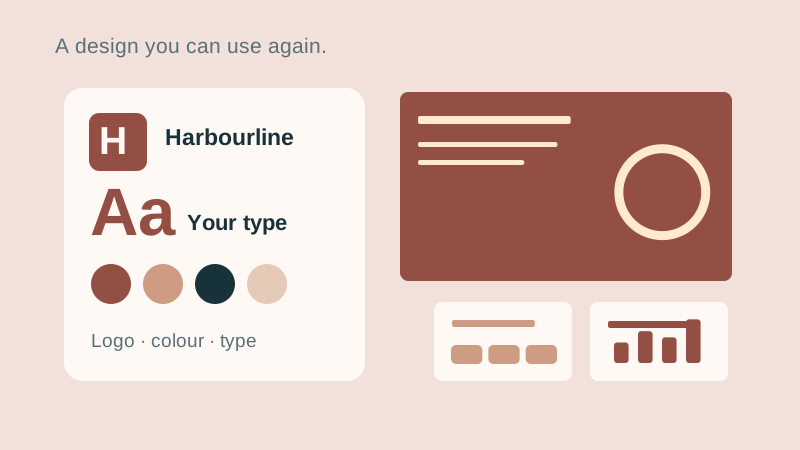
Shape colours, fonts, logos and slide masters in Brand kit, then use the design in a Custom prompt.
Fictional practice material · no account · updated 14 October 2026
- 01
Create the kit
Open Brand kit, unPaper’s designer. Start from a look, a logo or a PowerPoint you can use. For practice, choose a built-in look and give the kit a recognisable name.
Check: The kit opens with a preview of its slides.
- 02
Shape the design
Work through Logo, Colours, and Type & shapes. Change one setting at a time and inspect the preview. Under Slides, review the cover and content masters. Footer & labels controls recurring details; Rules & voice carries writing guidance into the prompt.
Check: Cover and content slides show the intended colours, typography and recurring details.
- 03
Save a reusable kit
Check contrast and long headings. Choose Save and use, then Download to keep a separate kit file. Saving in the browser makes the kit convenient to reuse; the downloaded file is your backup.
Check: The named kit is saved and its .unpaper-format.json file is in your own storage.
- 04
Use it in a custom prompt
Go to Create slides, choose Custom prompt and select your brand kit. Inspect the slides, copy the prompt and use it in your permitted AI. Review the result again before sharing.
Check: The prompt preview uses your kit, and the returned deck has been checked against it.
Check what you can do
Tick the results you verified yourself.
No account or reporting. Completion stays on this device.
Yours to keep
Your work. Your files. Your next move.
Keep your deck in your own files. Continue in PowerPoint, share it with colleagues, or return to the HTML source for your next AI revision.
PowerPoint · keep working
An editable .pptx for the tools and people you already work with.
HTML · keep the source
A self-contained source file you can open in a browser and revise with your chosen AI.
Next lesson
Converter: turn HTML into editable PowerPoint