Edit · 2 min practice
Find an editor action by name
Use the command palette and familiar shortcuts to move through your deck.
Fictional practice material · no account · updated 14 October 2026
- 01
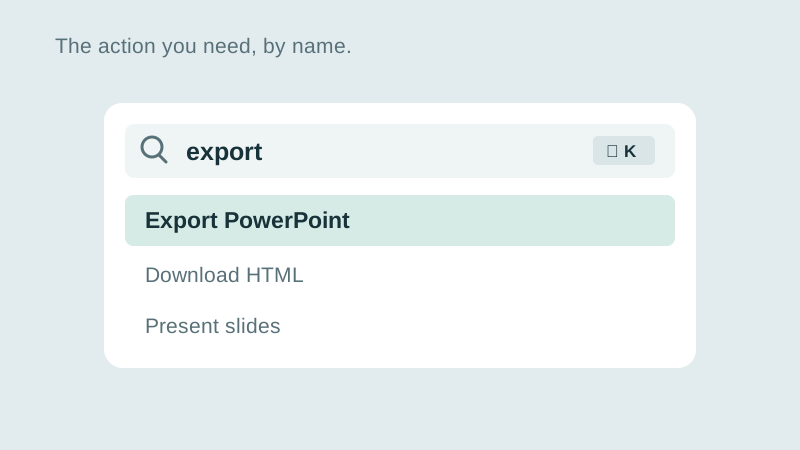
Search for an action
Open the practice deck and choose Search in the editor, or press ⌘K on Mac / Ctrl+K on Windows. Type ‘export’ to find the PowerPoint action.
Check: The action appears with its name and shortcut.
- 02
Navigate without searching menus
Use Page Up and Page Down to switch slides. Use ⌘1 / Ctrl+1 for Edit and ⌘2 / Ctrl+2 for Overview. Press Escape to leave a menu or finish text editing first.
Check: You can switch between one slide and the full overview.
- 03
Keep the shortcut sheet nearby
Open the editor’s question-mark button for shortcuts grouped by task. These actions use the same editor controls as the menus, with the same Undo and saving behaviour.
Check: You can find Help and return to the deck without losing your work.
Check what you can do
Tick the results you verified yourself.
No account or reporting. Completion stays on this device.
Yours to keep
Your work. Your files. Your next move.
Keep your deck in your own files. Continue in PowerPoint, share it with colleagues, or return to the HTML source for your next AI revision.
PowerPoint · keep working
An editable .pptx for the tools and people you already work with.
HTML · keep the source
A self-contained source file you can open in a browser and revise with your chosen AI.
Next lesson
Prepare the tools for offline work