Edit · 5 min practice
Change one slide with your AI
Point to what needs changing, send a scoped request, and review the returned revision.
Fictional practice material · no account · updated 14 October 2026
- 01
Choose the slide
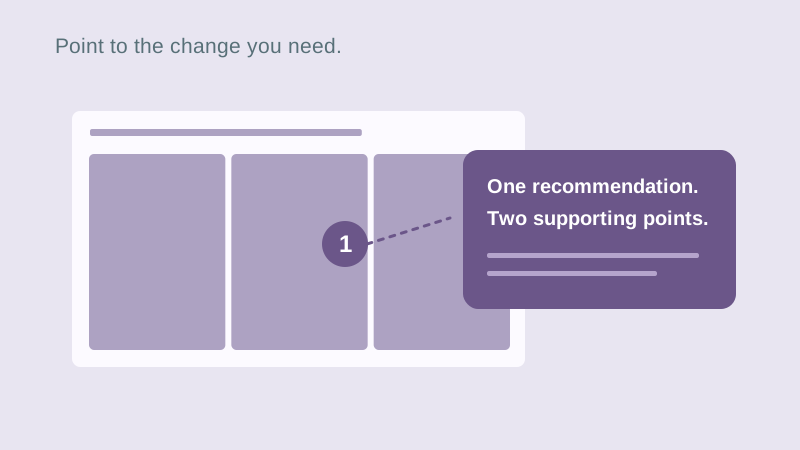
Open a practice copy and select slide 3. Use Request AI changes. Select only this slide for the revision. For a particular object, select it and use Comment on this object in its menu.
Check: The request names the intended slide or object.
- 02
Describe one useful change
Ask: ‘Shorten this slide to one recommendation and two supporting points. Keep the facts and the visual style.’ Copy revision request, then paste it into your permitted AI. Only material you choose to send goes to that assistant.
Check: The editor says Copied. If clipboard access is unavailable, select and copy the displayed request.
- 03
Review the returned change
Bring the AI response back to the revision panel. Inspect the proposed slide and then apply it. If the AI changes unrelated content or the reply is incomplete, ask for a corrected response before applying it.
Check: Slide 3 changes as intended, and the other slides remain intact.
- 04
Keep the new version
Use Undo or Version history if you prefer the earlier slide. When you are satisfied, export the updated PowerPoint and download the updated HTML source. A PowerPoint-only edit does not automatically update an older HTML file.
Check: The saved source and export both contain the revision you accepted.
Check what you can do
Tick the results you verified yourself.
No account or reporting. Completion stays on this device.
Yours to keep
Your work. Your files. Your next move.
Keep your deck in your own files. Continue in PowerPoint, share it with colleagues, or return to the HTML source for your next AI revision.
PowerPoint · keep working
An editable .pptx for the tools and people you already work with.
HTML · keep the source
A self-contained source file you can open in a browser and revise with your chosen AI.
Next lesson
Try a change and restore an earlier version