Edit · 3 min practice
Try a change and restore an earlier version
Experiment with confidence using Undo and the editor’s local version history.
Fictional practice material · no account · updated 14 October 2026
- 01
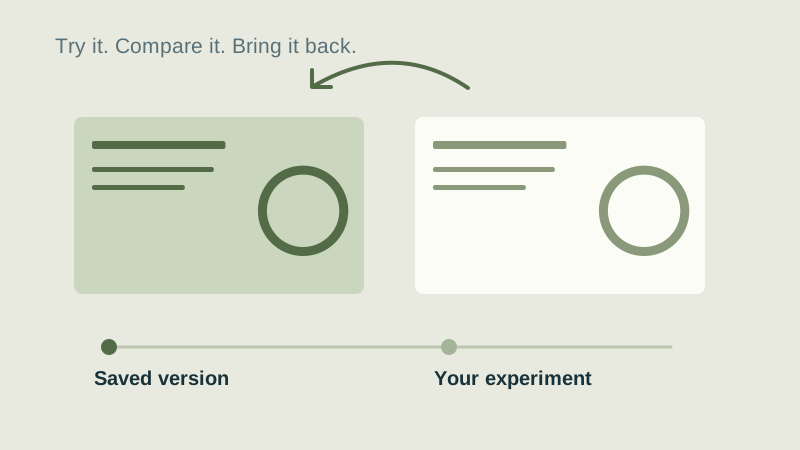
Save a named version
Open a practice copy. Open the deck menu and Version history, then save a version named ‘Before my experiment’. Version history belongs to this deck in this browser.
Check: Your named version appears in the list.
- 02
Try the change
Edit the cover heading or move an object. Use Undo for a recent edit. For the saved point, open Version history and select it to preview the earlier deck.
Check: You can compare the earlier appearance before restoring it.
- 03
Restore and download
Choose Restore to return to that version. Restoring is itself undoable. Download the HTML when you want an independent file; local browser history is not a substitute for your own saved files.
Check: The earlier heading is back, and your downloaded HTML contains it.
Check what you can do
Tick the results you verified yourself.
No account or reporting. Completion stays on this device.
Yours to keep
Your work. Your files. Your next move.
Keep your deck in your own files. Continue in PowerPoint, share it with colleagues, or return to the HTML source for your next AI revision.
PowerPoint · keep working
An editable .pptx for the tools and people you already work with.
HTML · keep the source
A self-contained source file you can open in a browser and revise with your chosen AI.
Next lesson
Find an editor action by name