Keep & reuse · 5 min practice
Import PowerPoint for your next revision
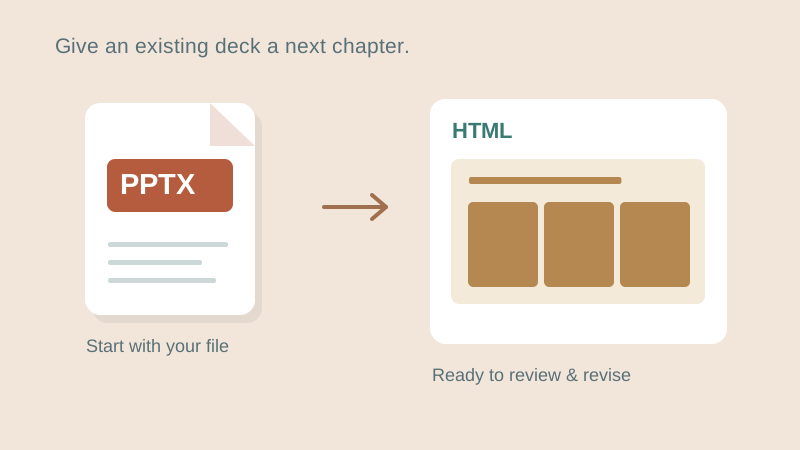
Open a PowerPoint locally, keep the original, and prepare an HTML source for revision.
Fictional practice material · no account · updated 14 October 2026
- 01
Keep your original
Save a copy of the original PowerPoint. If you need a safe practice file, open the practice deck and export it to PowerPoint first.
Check: You have a separate original .pptx file.
- 02
Open it locally
Use PowerPoint → HTML and choose the file. Review the imported slides and any warnings. Complex features may translate differently; compare with the original before continuing.
Check: Text, layout and important numbers have been compared with the original.
- 03
Revise and save a new pair
Save the HTML source and use the revision workflow with your permitted AI. Review the returned slides, then export a new PowerPoint. Keep matching filenames so you can identify which HTML goes with which export.
Check: The original is preserved and the revised HTML and PowerPoint are clearly named.
Check what you can do
Tick the results you verified yourself.
No account or reporting. Completion stays on this device.
Yours to keep
Your work. Your files. Your next move.
Keep your deck in your own files. Continue in PowerPoint, share it with colleagues, or return to the HTML source for your next AI revision.
PowerPoint · keep working
An editable .pptx for the tools and people you already work with.
HTML · keep the source
A self-contained source file you can open in a browser and revise with your chosen AI.
Next lesson
Change one slide with your AI